
Introduction to XLCS Real Estate Project Full Cost Calculation Template
📌 Quick Navigation
| Navigation | Link |
|---|---|
| ⚡️ Template Download | /categories/Template-Download/ |
| 📑 Version Matrix | /categories/Version-Matrix/ |
| 🚀 Quick Start Guide | /categories/Getting-Started/ |
| ❓ Changelog | /categories/Changelog/ |
| 🛠 Discussion & Help | https://xlcs.de/ |
📖 Product Description
📅 Template Introduction
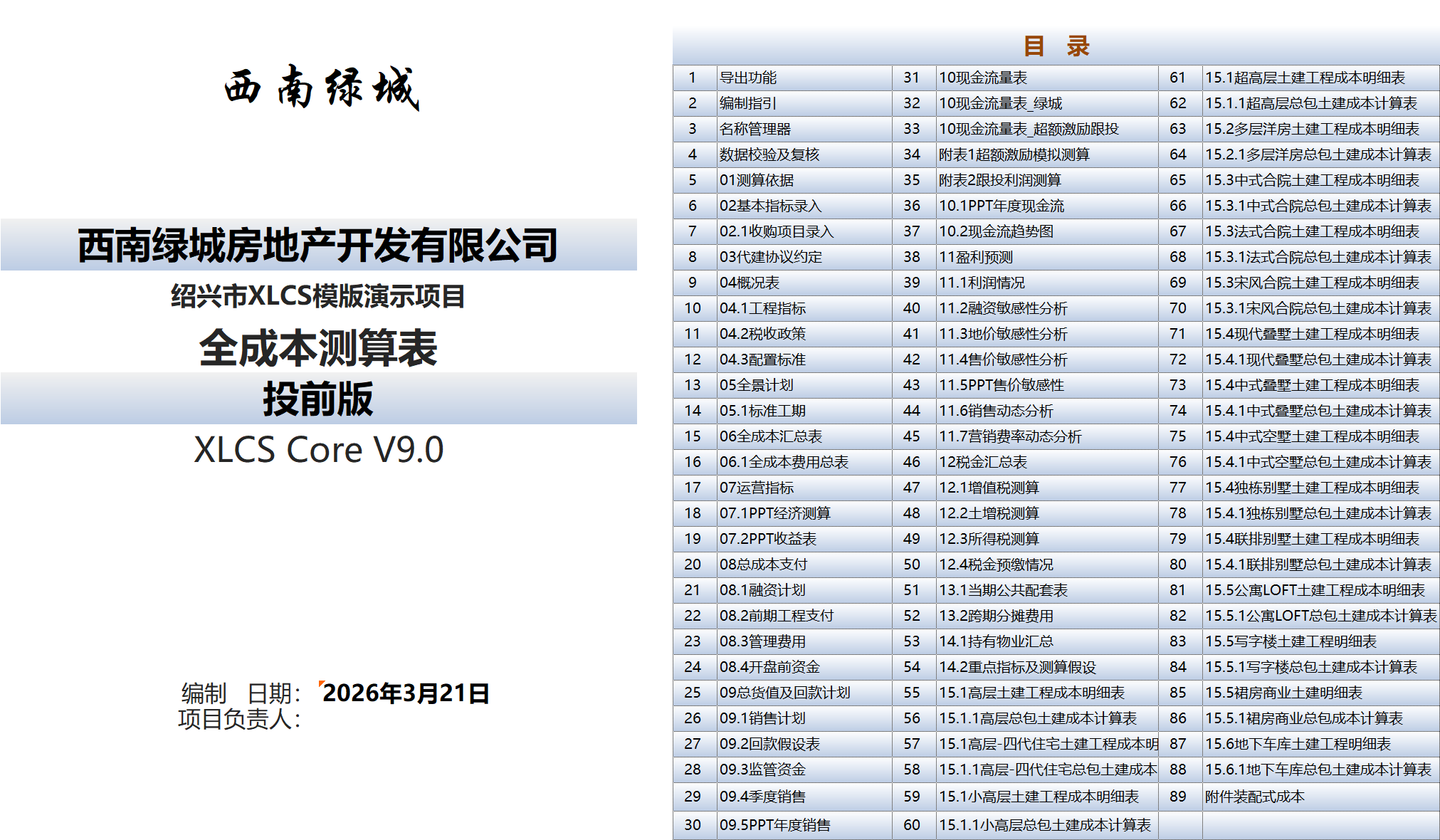
The XLCS Real Estate Project Full Cost Calculation Template is based on the characteristics of project expansion in Southwest Greentown projects, drawing on the strengths and features of full cost calculation templates from major developers like Greentown, Sunac, Country Garden, Jinke, Zhongliang, and Zhangtai. It integrates and compiles a fully intelligent dynamic full cost calculation template by combining Greentown’s product type configuration standards and preset conditions for conventional projects. By simply entering key and local indicators of the project, the template automatically outputs a complete set of engineering, sales, financing, tax, cash flow, and operational tables. What would typically require several days for cost professionals to complete with the cooperation of engineering/sales/finance departments can now be done by even a novice in just ten minutes. The entire template includes over 90 worksheets, covering all static/dynamic calculation analysis charts for real estate project calculations.
| Chinese Version | English Version | Version Number Logic Explanation |
|---|---|---|
| XLCS Beginner | XLCS Lite | Lightweight version, permanently locked to V1.X series |
| XLCS Core | XLCS Core | Standard feature version, version number iterates with the brand |
| XLCS Advanced | XLCS Pro | High-end extended version, version number iterates with the brand |
Basic Features
- After entering the city name, the template automatically links to the cloud database to determine if the city is included, loads the corresponding city’s ancillary fees, taxes, planning requirements, etc., and classifies the city level according to Greentown’s tier 1-4 city classification (if the city is not in the database, please fill in manually).
- Based on the city level classification, the template automatically selects the corresponding 5-12-month presale opening construction period template (or allows custom modification of the construction period). It also selects the corresponding construction period based on rough/finished delivery indicators and automatically generates the first opening time and all phased construction node plans and panoramic plans based on the highest floor number of the first opening area and local presale image node floor requirements.
- Based on the phased construction node plans automatically generated by the template, the template selects the preset proportion of secondary categories for engineering and upfront payments and the payment ratio template for upfront/engineering progress payments, automatically generating monthly payment plans for upfront and engineering payments for each phase (up to five phases) and entering the cash flow table.
- Based on the project area indicators, the template automatically classifies the project scale and selects the corresponding engineering payment ratios for different project scales according to Greentown standards. If manual modifications are made, the template automatically validates the modified data to ensure compliance with Greentown standards and provides recommended values (see the Data Validation and Review table).
- Based on the city level indicators, the template automatically imports Greentown’s standard sales cycles and first opening indicators for different city levels, validates them against different product types, and provides recommended values if they do not meet Greentown’s sales indicator standards (see the Data Validation and Review table).
- Based on the city level indicators, the template automatically imports Greentown’s standard marketing expense indicators for different city levels, validates the marketing expense ratio against Greentown standards, and outputs default values (see the Data Validation and Review table). The template also automatically calculates and generates monthly marketing expense payment plans based on monthly repayment values and marketing expense ratios (the repayment plan can be adjusted in the Repayment Plan table), which are then entered into the cash flow table.
- The template calculates the first opening time based on the generated opening times for each phase, local regulatory fund levels, opening image progress requirements (adjustable for the highest floor number of the first opening area and local presale image node floor requirements), and sales/repayment plans (default values can be manually adjusted). It automatically generates annual, quarterly, and monthly sales/repayment plans and PPT sales reports, which are then entered into the cash flow table.
- After entering the interest rates, loan terms, and interest payment methods for development loans/front-end financing/non-standard financing, the template automatically calculates interest and generates monthly financing payment plans. It also calculates and generates monthly shareholder fund interest plans based on the entered shareholder fund occupancy and repatriation interest rates, which are then entered into the cash flow table.
- After selecting whether the project involves renting/buying cars and the project type, the template automatically calculates and generates management fee control indicators and monthly payment plans based on Greentown’s management fee standards, which are then entered into the cash flow table. Manually entered management fee ratios are automatically validated against Greentown standards, and default values are provided (see the Data Validation and Review table).
- Based on Greentown’s preset product type configuration standards and the entered local prices for main materials like steel/concrete/blocks, as well as the selected assembly rate, the data automatically enters the engineering cost calculation for the corresponding product type (the template presets detailed civil engineering cost tables and general contracting civil cost calculation tables for different product types).
- After entering local tax information indicators (default values are automatically extracted from the corresponding city database), the template automatically calculates and generates VAT, additional taxes, land appreciation tax, and income tax reports. Based on whether tax refunds are applicable and the refund ratio, it generates prepayment data and final tax settlement data, along with monthly payment plans, which are then entered into the cash flow table.
- Based on the preset self-owned property operation template, the template automatically generates an economic calculation for self-owned properties.
- Based on the above engineering/sales/cost/financial monthly payment plans, the template automatically generates monthly/annual cash flow reports and trend charts.
- Expands content for second-hand acquisition projects, adding data collection for pre-acquisition fund expenditures and sold property income, which are automatically calculated and entered into the cash flow table.
- Includes tables for excess incentive and co-investment calculations.
- Automatically allocates land costs for multiple plots. The template summarizes and allocates the land area and calculates the allocated land costs for each real estate product based on the phased and batch-wise area of each product type for each plot.
- To meet the needs of WPS users, the template is fully adapted and optimized for WPS characteristics and JS code, launching the XLCS Core Full Cost Calculation Template_WPS Special Edition (also fully compatible with Excel). Office users can choose the XLCS Core Full Cost Calculation Template_Excel Edition.
- XLCS PRO V1 is suitable for multi-plot, multi-phase projects. It features a unique one-click generation function for land appreciation tax settlement values in multiple modes (overall settlement, plot-by-plot settlement, phase-by-phase settlement). By setting different phase combinations for multi-plot, multi-phase projects, users can instantly view the corresponding phase/plot land appreciation tax settlement values, quickly identifying the optimal tax planning phase combination. This allows for reasonable tax planning of settlement units during the development front-end while ensuring the phase combinations comply with national and local tax policies and are accepted by tax authorities.
Special Features
- Cloud Database: Embedded cloud database functionality collects and organizes regulatory fees, taxes, and green building policies for major cities nationwide, providing reference for calculations. Uses external cloud database links for real-time data updates. The template can also extract and auto-fill key indicators from the database for the corresponding city as default values, which can be manually adjusted based on real-time policies.
- Cost Indicators: The template automatically matches Greentown’s product configuration standards and quota database based on five product classifications: Classic (T-grade), Premium (S-grade), Comfort (W-grade), Enjoy (J-grade), and Affordable (C-grade). Based on the selected grade, the template adjusts the corresponding coefficients and unit indicators in the Configuration Standards and enters them into the detailed civil engineering tables for calculation.
- Construction Period Template: Presets seven sets of presale time construction period templates for 5-12 months. The template automatically selects the corresponding presale time construction period template based on the city level (the number of months specifically refers to the opening time, i.e., the opening time in Greentown’s 596 model, where the average opening cycle is about 9.2 months: 5 months for construction start, 9 months for opening, and 6 months for cash flow breakeven). Users can also manually select a presale time construction period template or customize one, simplifying the tedious construction period planning process. The template also automatically calculates the first opening time based on the highest floor number of the first opening area and presale image floor node requirements, entering it into the construction period plan.
- Engineering Payment Template: Presets four sets of engineering payment templates with different payment methods (users can choose: a. Monthly payment for conventional projects; b. Annual lump-sum payment for engineering progress; c. Contractor financing before opening, followed by normal monthly payments; d. Contractor financing before structural topping-out, followed by normal monthly payments). After selecting the corresponding engineering payment template, users can switch with one click, and the template automatically recalculates and updates monthly engineering payment values, which are instantly reflected in the cash flow table.
- Upfront Payment Template: Presets two sets of upfront payment templates with different payment methods (users can choose: a. Monthly upfront payment for conventional projects; b. Discounted financing for difficult projects before opening, excluding regulatory fees and partial design fees (users can also freely set different payment ratios for design fees, regulatory fees, and upfront engineering fees), followed by normal monthly payments after opening). After selecting different upfront payment templates, users can switch with one click, and the template automatically recalculates monthly upfront payment values, updating the cash flow.
- Sales Repayment Template: After selecting whether the city has purchase restrictions and whether loans are released after structural topping-out, the template automatically applies the corresponding sales repayment template. Users can also manually adjust repayment nodes and ratios in the Repayment Assumptions table. The template automatically generates a sales repayment plan and enters it into the Total Value and Repayment Plan table.
- Sales Fund Supervision Template: Presets six sets of sales fund supervision templates (A-D classes). Based on the city’s fund supervision situation, users can select the corresponding supervision template or manually adjust supervision nodes and fund release ratios. The template automatically generates a monthly supervision fund plan based on phased node times and enters it into the cash flow table (users can choose whether to include supervised funds in repayments or conventional repayments in Table 2).
- Financing Interest Payment Template: For development loans, front-end financing, and non-standard financing, users can choose from four interest payment templates in Table 08.1: quarterly interest payments, semi-annual interest payments, annual interest payments, or one-time principal and interest repayment. Switching between templates automatically generates cash flows for different interest payment methods.
- Construction Fee Payment Template: After entering key indicators and payment nodes of the construction agreement, the template automatically calculates and generates monthly payment plans for construction fees under three modes: salable properties, non-salable properties, and incentive fees, which are then entered into the cash flow table.
- Ancillary Fee Calculation Template: After entering local regulatory fee indicators (default values are automatically extracted from the corresponding city database) and the calculation method, the template automatically calculates city ancillary fees for different product types using two calculation methods: building area-based and total investment-based. Users can choose whether basements are included in ancillary fee calculations. Under the total investment-based method, there are two sub-modes: uniform standard calculation and different standards for different products (floor numbers). The template automatically calculates city ancillary fees based on the selected calculation method and enters them into the cash flow table.
- Management/Marketing Fee Calculation Template: After entering key project information, the template automatically generates recommended management and marketing fee rates based on Greentown standards, suggesting that the corresponding rates in external agreements should not be lower than the recommended values. Users can manually input rates from external agreements to override the default values, and the template automatically adjusts the full cost calculation tables.
- Non-Standard Residential Land Appreciation Tax Template: After entering the local standards for non-standard residential classification, the template automatically distinguishes non-standard residential properties based on plot ratio, residential unit area requirements, and price indicators, calculates the proportion of standard residential area, and enters it into the land appreciation tax calculation table for classified tax calculation.
- Finished Construction Period Template: When the template detects finished properties in the input indicators, it automatically adjusts the options for finished delivery/finished acceptance and selects the corresponding finished construction period template.
- Assembly Rate Template: After selecting the required prefabricated building PC rate for the project, the template automatically adds the increased structural costs for different assembly rates in the engineering cost calculation table.
- Presale Image Progress Template: Based on the height limit indicators in planning conditions, the template automatically calculates the highest floor number for the first opening area and the corresponding construction period for presale floors based on local presale image progress requirements, providing recommended values for the first opening date.
- Pre-Set Multiple Output PPT Pages: The template extracts key results data to automatically generate multiple PPT pages for reporting, which can be directly copied into PPT materials, such as economic calculation tables, income statements, annual cash flow tables, annual sales tables, price sensitivity analysis, etc.
- Multiple Sensitivity Analysis Reports: Price sensitivity analysis, land price sensitivity analysis, and front-end financing disbursement sensitivity analysis cover the main sensitivity analysis needs for real estate project calculations, generated with one click using VBA code.
- Automatic Adaptation to Major Developers’ Engineering Indicators: In addition to automatically selecting Greentown’s engineering cost quota indicators for each product series as default values, the template automatically adjusts engineering indicators for city levels based on downloaded cloud data and displays corresponding engineering indicator data from Country Garden for reference and adjustment based on the project location.
- One-Click Export of the Entire Calculation Template: To meet users’ confidentiality requirements for output files, the template adds a one-click export function. Users can select the worksheets to export and click “One-Click Export” to generate an XLCS file without macros. The exported Excel workbook retains only the data, removing formulas, macros, and VBA code from the original template. Usage: In the Export Function table, click the button to generate the directory, then click the button to export.
- Data Validation and Review Function: Automatically checks the relationships between tables and validates common errors, tracing data sources and providing reasons and suggestions for modifications.
- VBA Code Automatically Checks Workbook Errors: In the Data Validation and Review table, a new VBA code function automatically checks workbook link errors, cross-table reference errors, and other common table errors. Click the button to execute automatically (results are displayed in cells C101, C103, C105).
- Pre-Opening Fund Payment Plan Table: The template automatically categorizes and aggregates monthly payment and repayment plans for land, upfront, engineering, period expenses, and taxes based on the selected engineering payment template (pre-opening financing, pre-structural topping-out financing, or normal monthly payments). Users can select “Phase 1” or “Phase 1 Batch (First Opening Area)” mode with one click based on the project’s first opening situation, providing aggregated data for pre-opening totals, first-year totals, and Nth-year totals. It also offers quick and convenient monthly breakdown solutions for the construction costs of marketing centers, show flats, and landscape display areas, outputting monthly cash flow tables.
- Quick Sales Template: Presets four templates: average sales period depletions, custom monthly depletion rates, custom monthly residential unit depletions, and custom depletion cycle months. Users can switch templates with one click in Table 2, and the VBA code automatically regenerates new monthly depletion rates based on the selection. Different templates can also be selected for individual products.
- Automatically Find the Fastest Cloud Server: If the default cloud database URL connection fails, confirm the network connection. When opening the file, the template automatically detects the speed of all official servers and selects the fastest one for local access, connecting and updating cloud data. In Table 02, users can view the network connection status and the currently connected server URL, along with a “One-Click Fix Cloud Link Error” button.
- Non-Standard Financing Module: Non-standard financing refers to non-standardized financing to cover project funding gaps beyond front-end financing and development loans. Based on monthly cash flow gaps, the template triggers non-standard financing when the cumulative net cash flow gap (negative value) exceeds a user-defined threshold. Single financing terms default to 12 months, with forced early repayment and interest payment when cash flow turns positive. The early repayment logic is also triggered if no funding gaps are detected in the next six months. Repayment follows the “first-in-first-out” principle. The VBA code automatically calculates and arranges the optimal disbursement and repayment nodes for non-standard financing, generating monthly interest. Users can choose whether to include it in the financing plan and cash flow table, and can test results with one click while adjusting interest rates and thresholds.
- One-Click Automatic Directory Generation: Uses VBA code to automatically generate a homepage directory. VBA-generated workbook directories are more flexible, stable, and automated compared to the GET.WORKBOOK macro function. A button on the homepage allows one-click directory generation, suitable for adding/deleting tables or renaming operations.
- One-Click Generation of Land Appreciation Tax Settlement Values in Multiple Modes (Overall, Plot-by-Plot, Phase-by-Phase): XLCS PRO V1.0 is suitable for multi-plot, multi-phase projects, featuring a unique one-click generation function for land appreciation tax settlement values in multiple modes. Based on the selected settlement mode, the data automatically enters the cash flow table and full cost summary table. Users can set different phase combinations for multi-plot, multi-phase projects to instantly view the corresponding phase/plot land appreciation tax settlement values, quickly identifying the optimal tax planning phase combination. This allows for reasonable tax planning of settlement units during the development front-end while ensuring the phase combinations comply with national and local tax policies and are accepted by tax authorities.
Important Notes
1. All data in the template is preset with conventional conditions and indicators. If there are no special corresponding indicators for the project, no modifications are needed, and defaults can be used. Only green cells can be manually modified; other cells contain formulas and cannot be altered.
The template uses Greentown’s new five-tier product configuration classification: Classic (T-grade), Premium (S-grade), Comfort (W-grade), Enjoy (J-grade), and Affordable (C-grade). The default engineering cost indicators are based on the lower construction costs required for the Enjoy (J-grade) configuration. If the configuration standard or city level is increased, the template automatically adjusts the corresponding cost coefficients and unit prices in the Configuration Standards and enters them into the detailed civil engineering tables for the corresponding products. Users can also manually modify differences in the “Add-on Package” section of the Engineering Indicators table to uniformly adjust the engineering indicators for the product.
To ensure real-time updates of database data, the template uses external “cloud database” links. If the current server is temporarily unavailable, the template has a one-click repair function. Users can also manually modify the HTTP URL in the “Name Manager” to other available official URLs: fckcs.cn, fccs.cc, fckcs.com.
Typically, users only need to open Table 2 for basic indicator input. For data not yet available during calculation, default values can be retained. Note that only green input cells can be modified; other cells usually contain linked formulas with interrelationships. After entering key indicators, the template file will generate all static and dynamic full cost calculation reports in real time.
If the calculation conditions are more detailed, users can fine-tune other secondary indicator input tables, such as construction agreement terms, local tax policies, engineering indicators, and configuration standards.
Experience Tips:
6.1. General: Start rough (framework), then detailed (adjust costs), and finally review (validation table).
6.2. Specific steps: 02 Basic Indicator Input → 04.2 Tax Policy → 08.2 Upfront Engineering Payment Table (adjust payment ratios) → 09.2 Repayment Assumptions (adjust repayment ratios) → Generate 06 Full Cost Summary Table (first using Greentown’s default cost values and progress table) and 06.1 Full Cost Expense Table → If there are objections to the unit costs, modify them by adjusting: 04.3 Configuration Standards + 04.1 Engineering Indicators → Review: 04 Overview Table + 07 Operational Table, identifying abnormal indicators → 05 Panoramic Plan + 05.1 Standard Construction Period (generally left unchanged, using Greentown’s default construction period) → Review: 08.1 Financing Plan + 09.4 Pre-Opening Funds + 09 Total Value and Repayment + 09.1 Sales Plan.
6.3. Review 10 Cash Flow + 11.1 Profit Status + 11.4 Price Sensitivity Analysis; other remaining tables are auxiliary and can be briefly reviewed.
6.4. In the Data Validation and Review table, click the update buttons one by one to refresh the data and check for error prompts below.
Template Directory
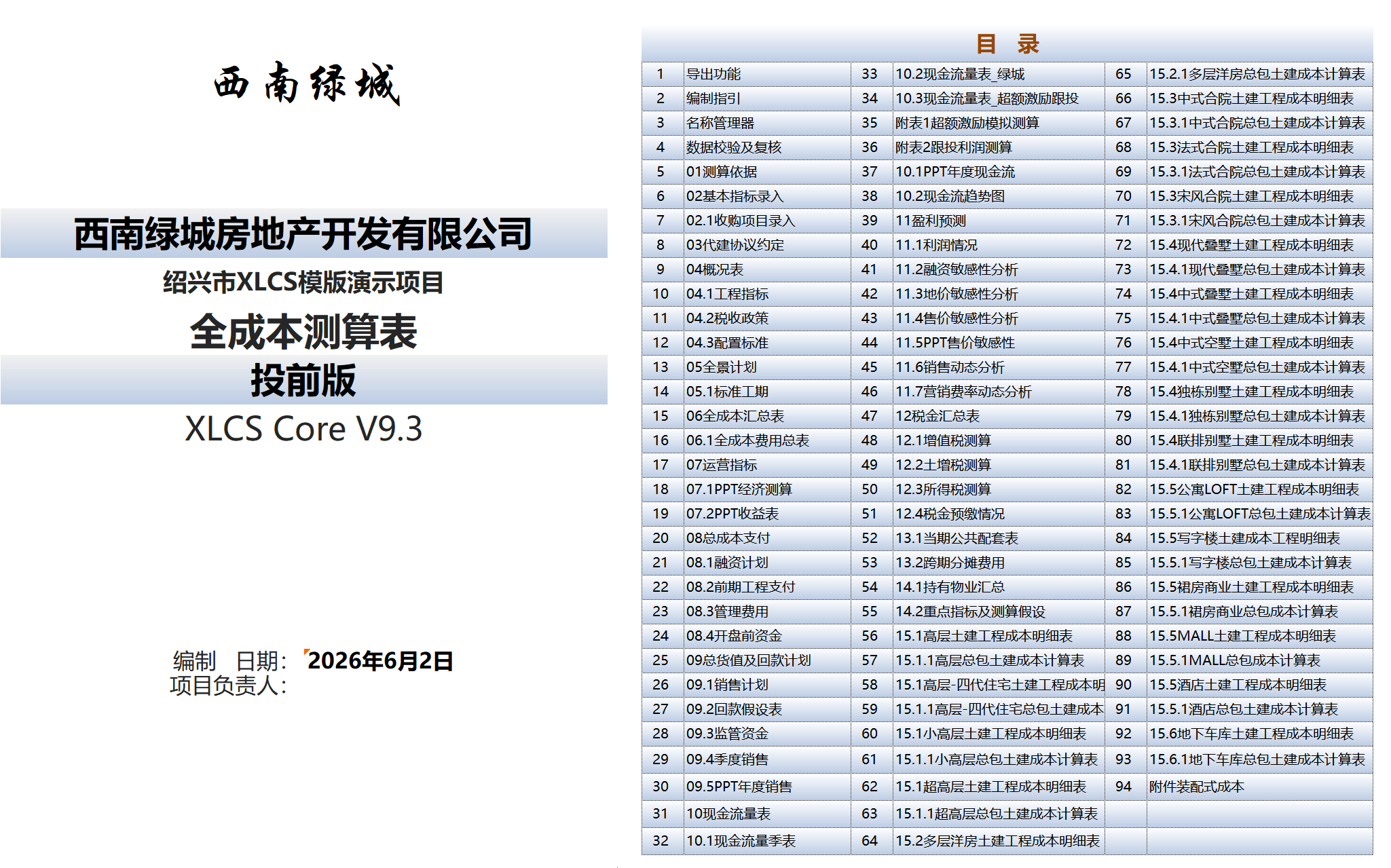
Complete XLCS Real Estate Project Full Cost Calculation Template Compressed Package Directory:
- XLCS Full Cost Calculation Template_Core V9 Edition.xlsm
- XLCS PRO V2 Full Cost Calculation Template_Multi-Plot Edition.xlsm (for multi-plot projects)
- Single-Page Simple Calculation Template simple-template.xlsm
- XLCS Real Estate Project Full Cost Calculation Template User Manual.docx
- XLCS Core WPS User Quick Start.docx
- deepseek Analysis of XLCS Full Cost Calculation Template.docx
- Version Update Notes.txt
- City Database User Manual.txt
- Version Selection Guide.txt
- XLCS Real Estate Project Full Cost Calculation Template Quick Start.txt
- wps.vba.rar (Required free personal edition VBA plugin for WPS)
- Beginner Edition (XLCS Lite V1 Full Cost Calculation Beginner Edition.xlsm, XLCS Lite Beginner Edition Quick Start.docx)
Frequently Asked Questions
It is recommended to use Excel 2016 to open the template file, as the template is developed using Excel 2016 and employs multiple VBA codes. WPS uses JS language and may fail to load or execute, so users must use the XLCS Core Full Cost Calculation Template_WPS Edition. There are many versions of WPS, but only the professional edition supports VBA (users can download a professional edition, e.g., WPS2019 State Grid Professional Edition, WPS2019 Wuhan Government Professional Edition, WPS2019 Postal Enterprise Professional Edition). For the free personal edition downloaded from the WPS official website, the following WPS plugin must be installed:
After downloading the compressed package, click to install and wait for completion. Then reopen WPS, and the following interface will appear. Click "Continue" and "Enable Macros." If opening the .xlsm file prompts: “Security Risk Microsoft has blocked macros from running,” right-click the file → Properties → Unblock under the security options.
Macro Security: If Office has macro security enabled by default and macros are not enabled, macro functions may not work (the homepage may display #name instead of text). Set macro security to medium or low (not recommended for long-term use).
Method: Click “Tools” → “Macros” → “Security,” and select “Medium” or “Low.”

After opening the template file, Excel may prompt: “This workbook contains links to one or more external sources that may be unsafe.” Click “Update,” and the template file will automatically link to the online city database to update data. Alternatively, go to: Data → Connections → Edit Links → Update Values, update the city database file, and then go to Data → Connections → Refresh All to update all cloud data, ensuring normal use of the template file.
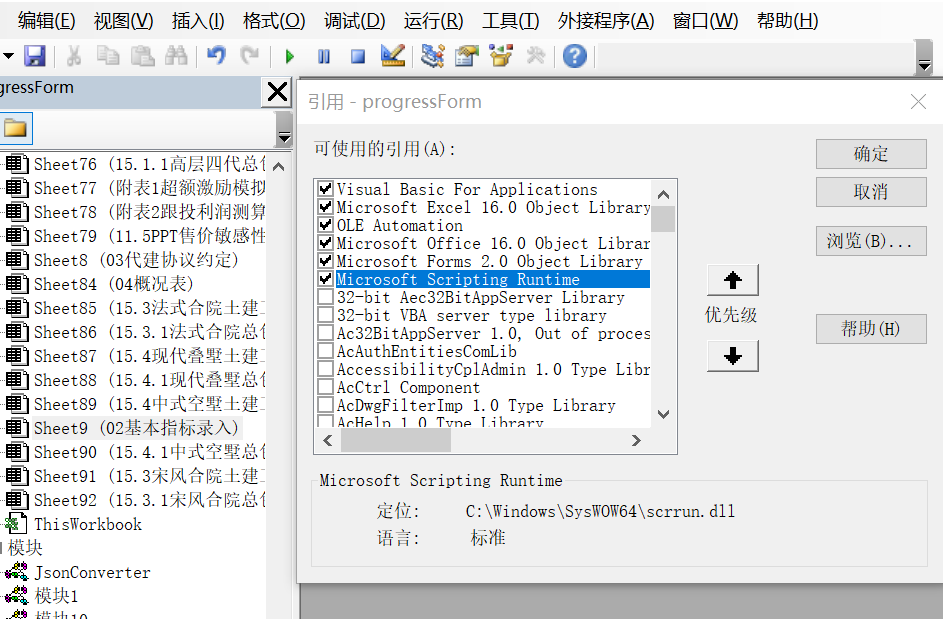
PS: If the city database reference path is incorrect, check and modify the path in: Formulas → Name Manager → View and modify the reference location for names starting with HTTPS, or download the city database file and save it in the same folder as the template file.Files with the .xlsm suffix are Excel files with macros enabled, so macros must be enabled to fully use this calculation template. To add the VBA editor in Excel: File → More → Options → Customize Ribbon → Main Tabs → Developer → Add to the right-side custom ribbon. To add project references: In Excel, select Developer → Visual Basic → Tools → References. After opening the file selection dialog, select the items shown in the image below and confirm.
Typically, users only need to open Table 2 for basic indicator input. For data not yet available during calculation, default values can be retained. Note that only green input cells can be modified; other cells usually contain linked formulas with interrelationships. After entering key indicators, the template file will generate all static and dynamic full cost calculation reports in real time.
If the calculation conditions are more detailed, users can fine-tune other secondary indicator input tables, such as construction agreement terms, local tax policies, engineering indicators, and configuration standards.
To meet users’ confidentiality requirements, the template adds a one-click export function. Users can select the worksheets to export and click “One-Click Export” to generate an XLCS file without macros. The exported Excel workbook retains only the data, removing formulas, macros, and VBA code from the original template. Usage: In the Export Function table, click the button to generate the directory, then click the button to export.
📥 Latest Template Download Links
Select any fastest download link, enter Access password, click “Download” at the top right corner of the download page.
| Type | Link |
|---|---|
| Primary Download Link | http://fccs.cc/xiazaigengxin/120.html |
| Backup Download Link | http://cskits.com/posts/e79f33ad.html |
| Backup Download Link | http://fccsz.com/xiazaigengxin/120.html |
🌐 Official Website & Support
| Type | Link |
|---|---|
| Official Website | http://fccs.cc |
| Official Website | http://fckcs.cn |
| Official Website | http://fckcs.com |
| Official Website | http://fdc.sd |
| Official Website | http://fccsz.com |
| Official Website | http://cskits.com |
| Help & Suggestions | http://xlcs.de/ |
| Email Contact | [email protected] |
⚠️ Important Notice
Ensure a stable network connection before refreshing the template file, otherwise, full functionality cannot be guaranteed, leading to potential estimation errors!
📷 Template Preview
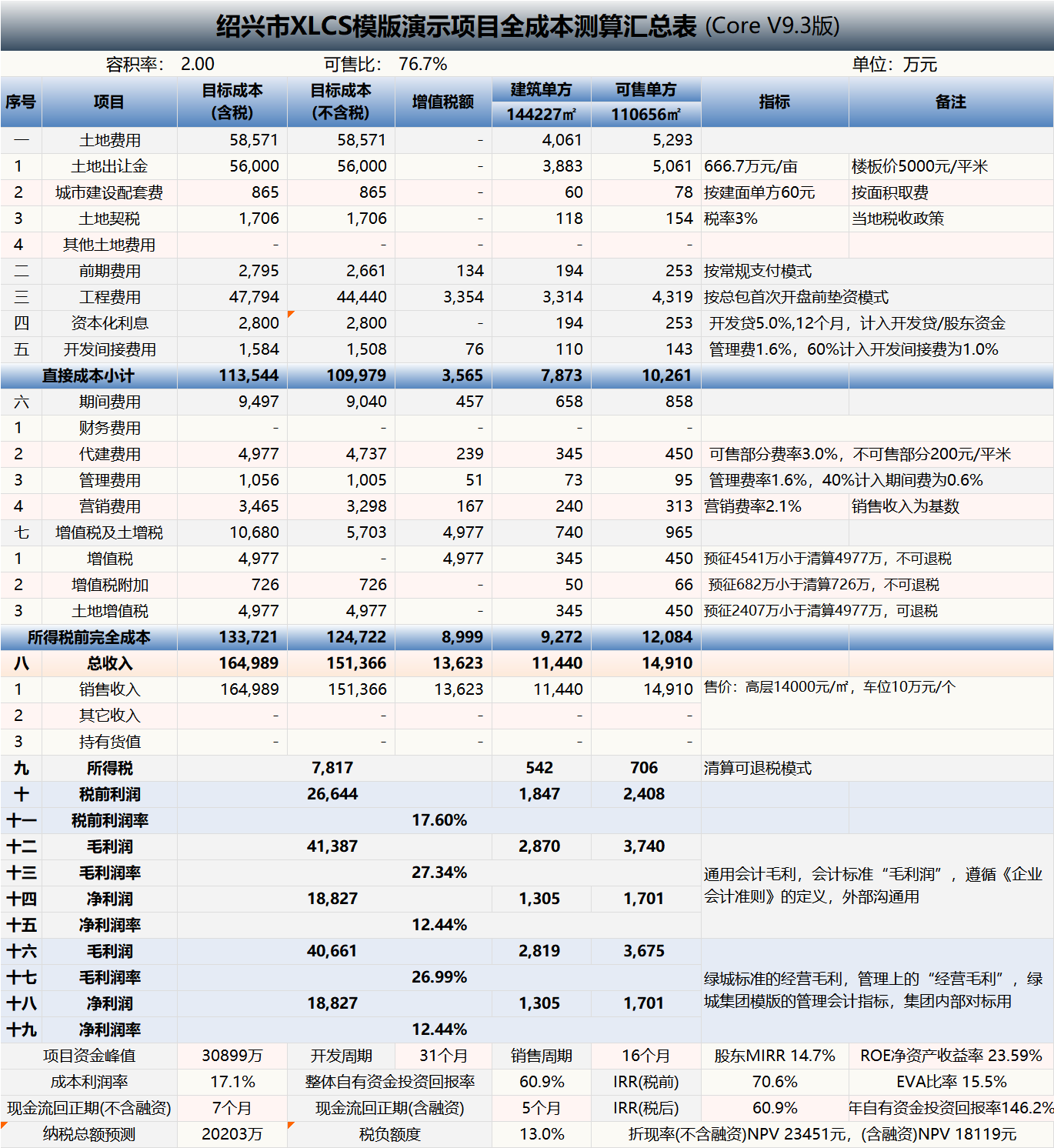
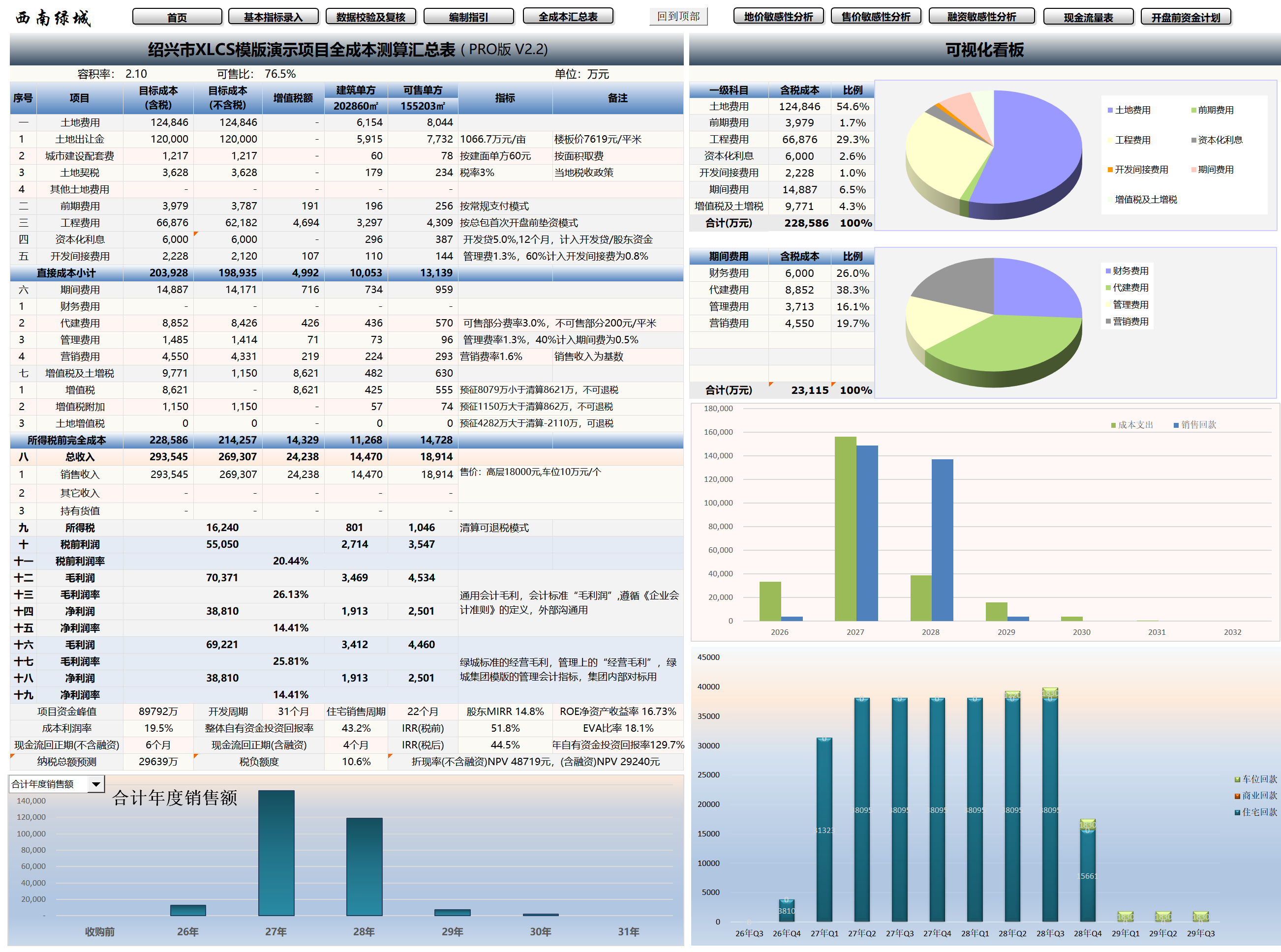
XLCS — Making Full Cost Estimation Smarter
```